This guide explains how to grant access to Sequence to an employee or an external collaborator.
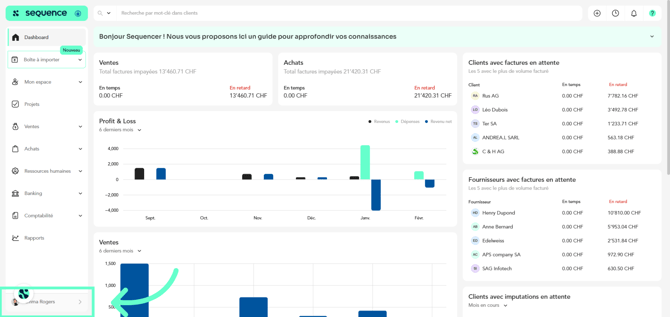
- To grant access to a user, click on your profile in the bottom-left menu.
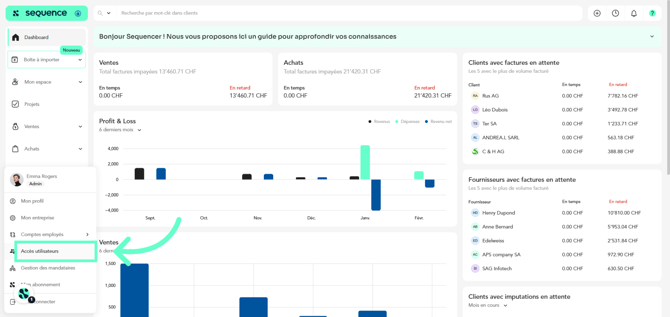
- Then click on User Access.
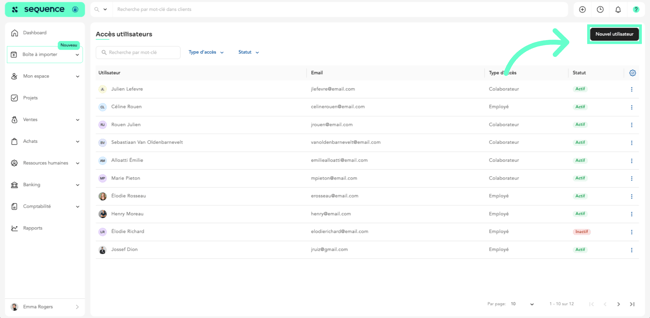
- To create a new user, click on the New User button.
- Select the type of user you want to create: employee or external collaborator.
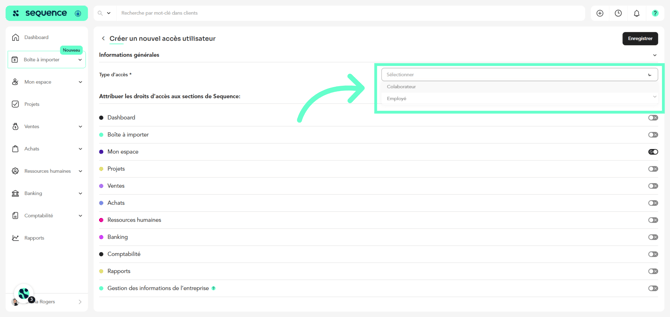
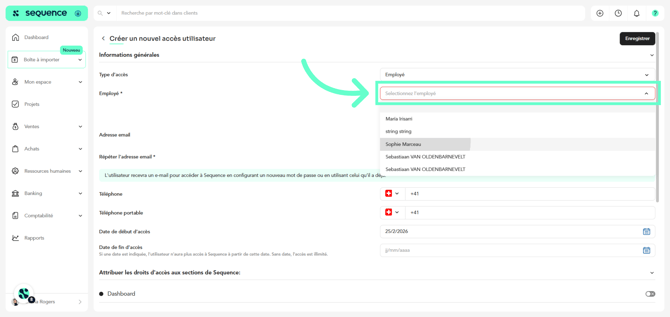
- If you choose employee, you will be asked to select the employee for whom you want to create access.
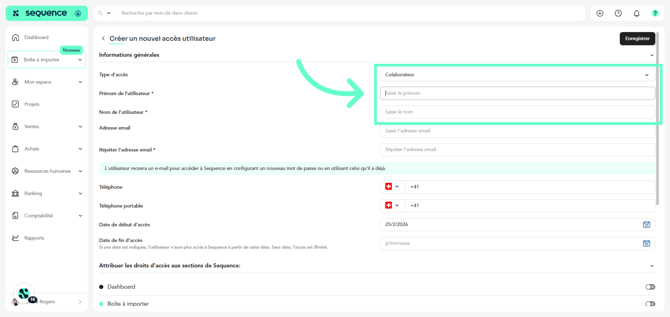
- If you choose external collaborator, you will need to enter their first and last name.
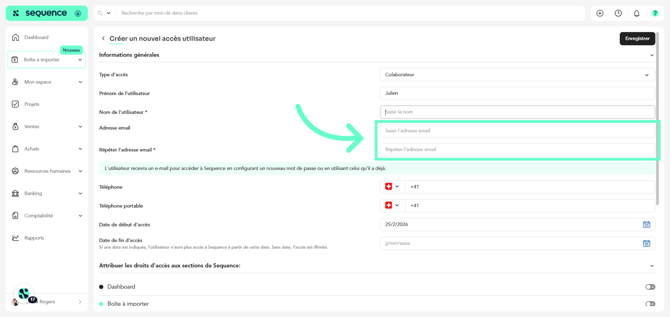
- You will also need to enter the email address you want to use to grant access and confirm it to avoid any errors.
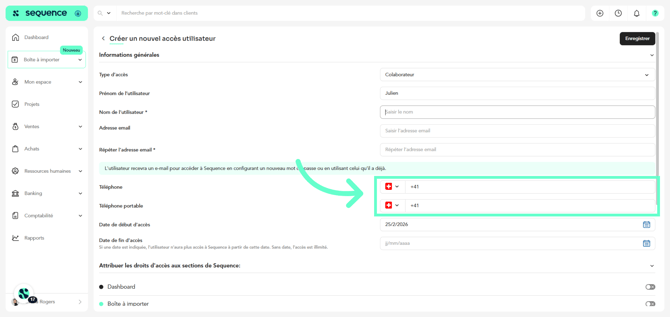
- You can also provide their landline and mobile phone numbers.
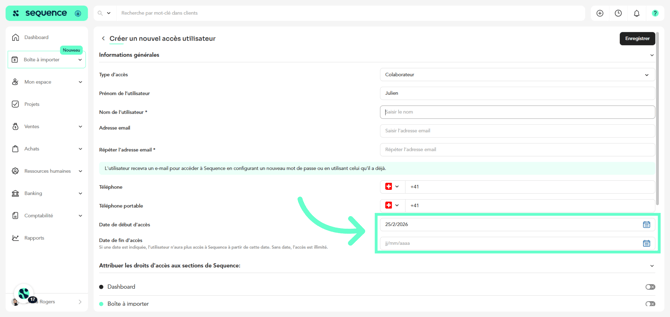
- The access start date will be set to the current date, and you can define an access end date. If you do not specify an end date, the access will be unlimited.
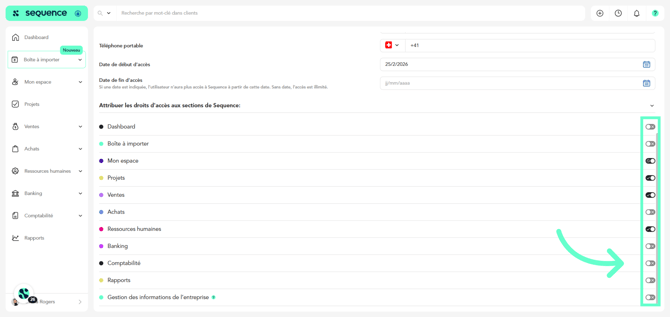
- You can also assign this user access rights to the different sections of Sequence by enabling or disabling the toggles.
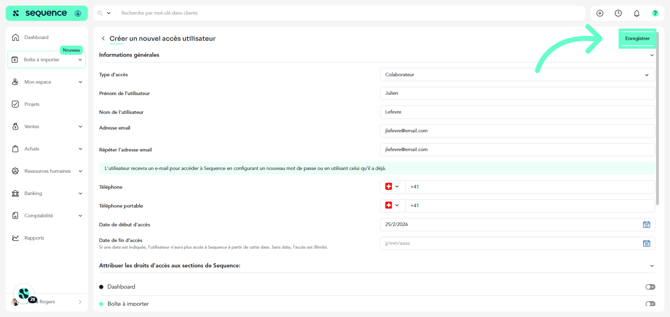
- To finalize, click Save to store the entered information. The user will receive an email containing a link to access Sequence. They will need to log in using their email address and the password they set up.
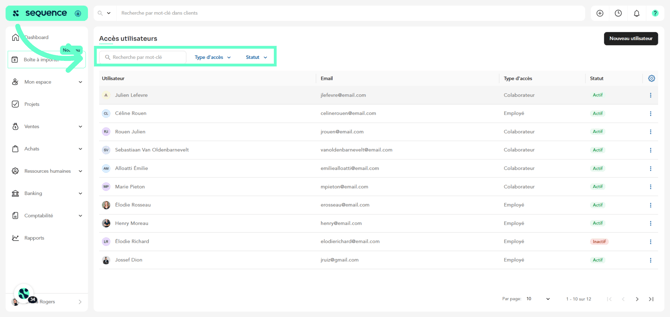
- In the User Access section, you will find a list of all users who have access to Sequence, whether employees or external collaborators.
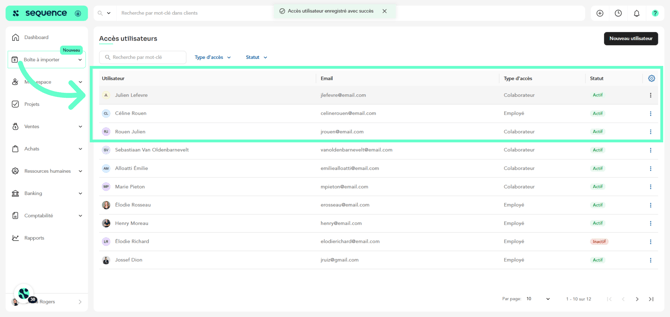
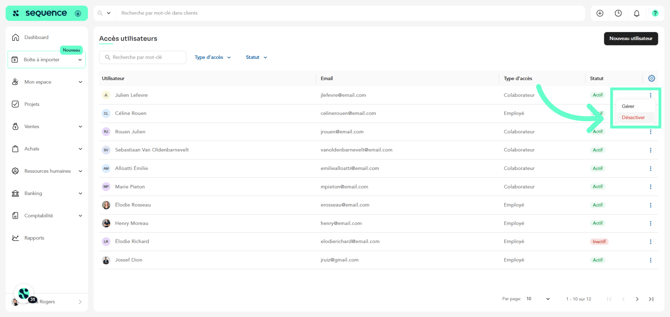
- To deactivate an active user, click on the three dots on the corresponding line, then click Deactivate.
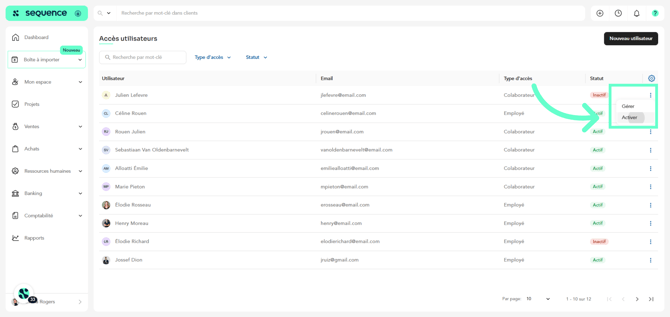
- To activate an inactive user, click on the three dots on that user’s line, then click Activate.
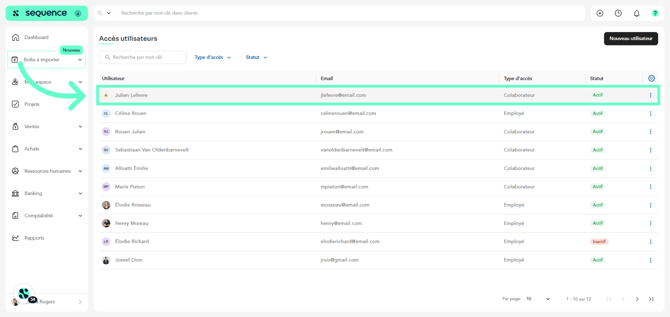
- If you want to edit a user, click on their line to access the same form used during creation.
- If you need to search for a specific user, you can use the search bar as well as the filters by access type and status.