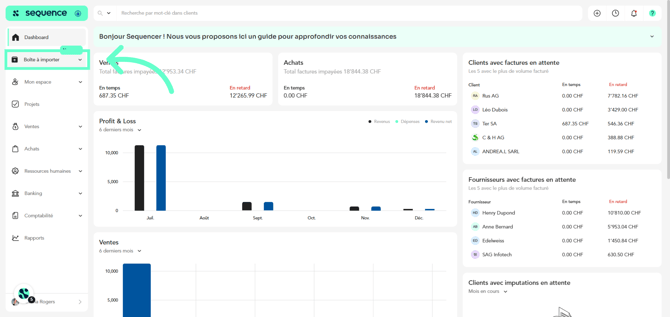
1. To create a salary policy by importing a contract, click on Import box
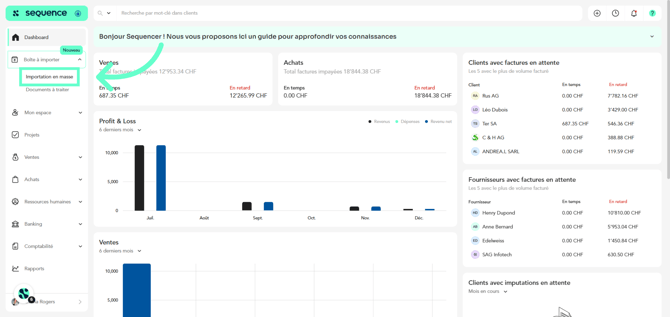
2. Then click on Bulk import
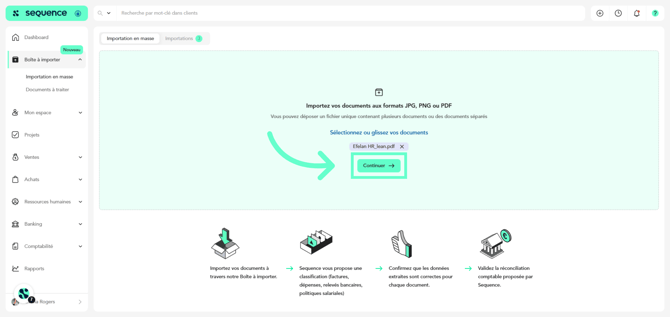
3. Select or drag the files you want to import and click Continue
4. The imported documents will appear in the Imports tab
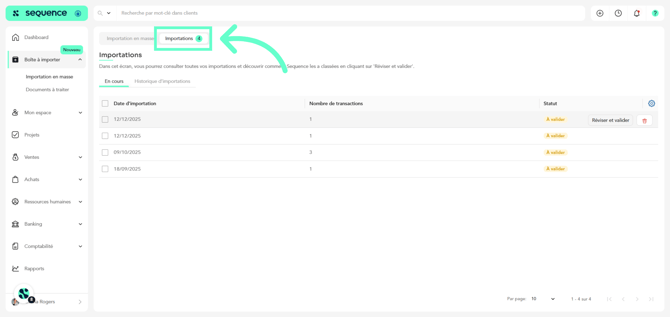
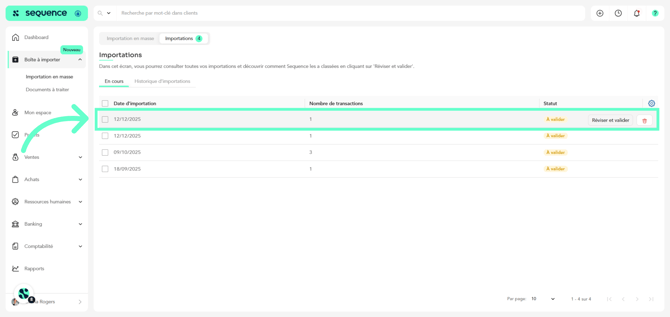
5. Click on the corresponding line or on Review and validate
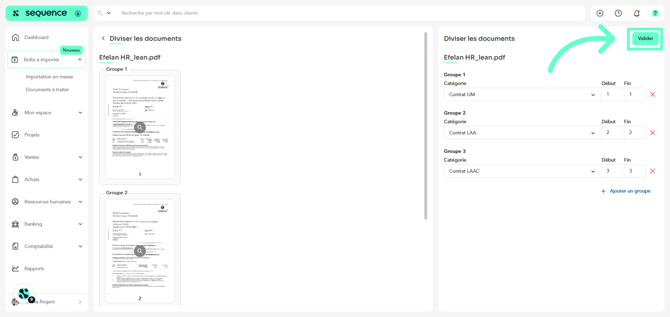
6. In the separator, check that Sequence has correctly split the files into salary policy contracts, then click Validate
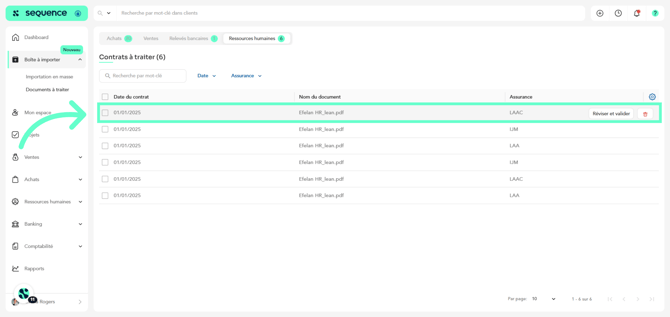
7. Next, in Documents to process, go to the Human Resources tab
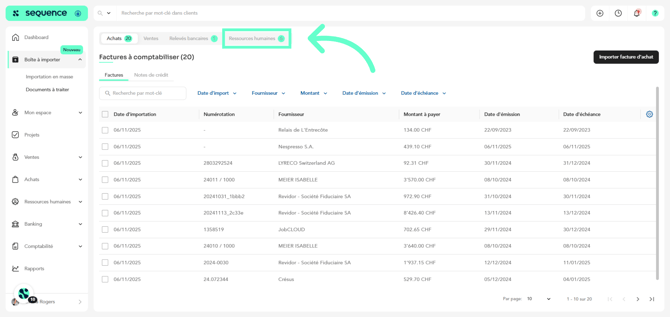
8. Each imported contract will appear on a separate line. Click on the line to review or on Review and validate
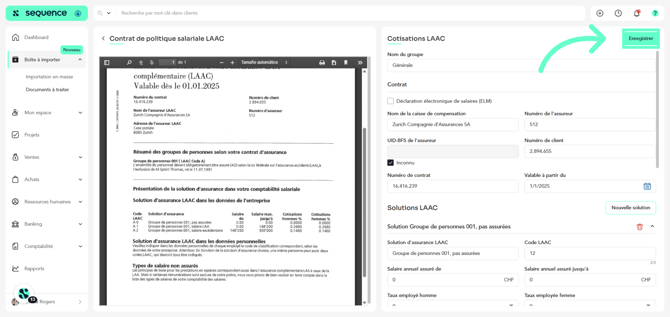
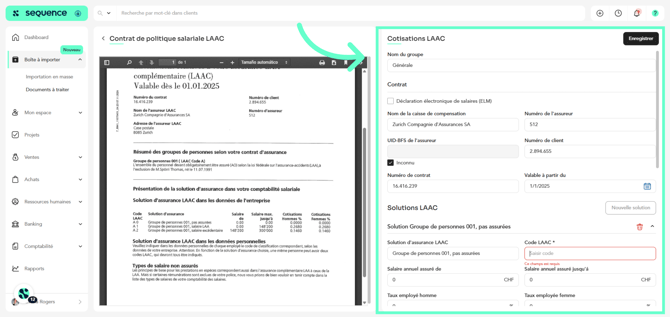
9. Check that Sequence has correctly filled in the fields based on the provided salary policy contract
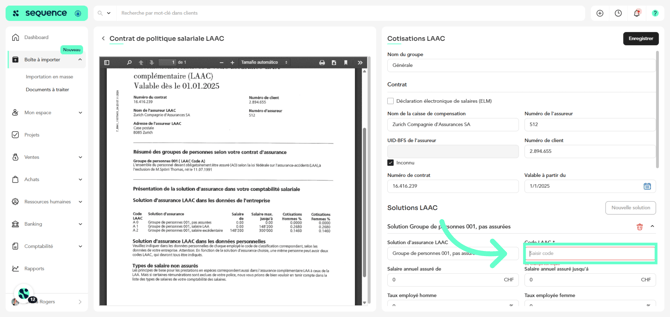
10. If any field is missing, complete it
11. To finish, click Save