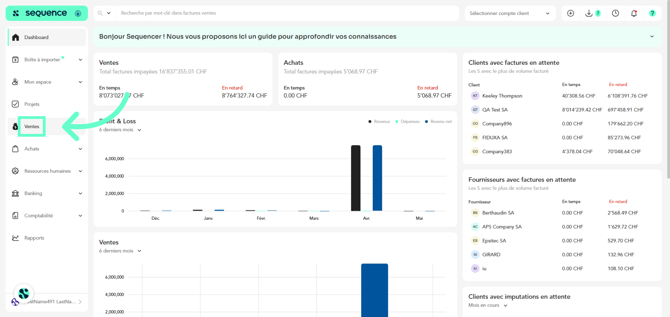
1. To create an invoice and select the payment method, go to Sales in the left side menu.
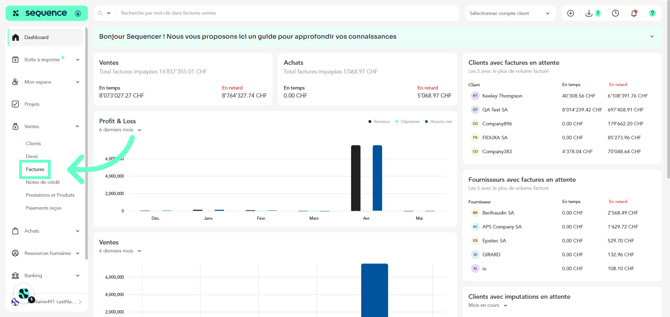
2. From the options displayed, select Invoices.
3. Click on Create invoice.
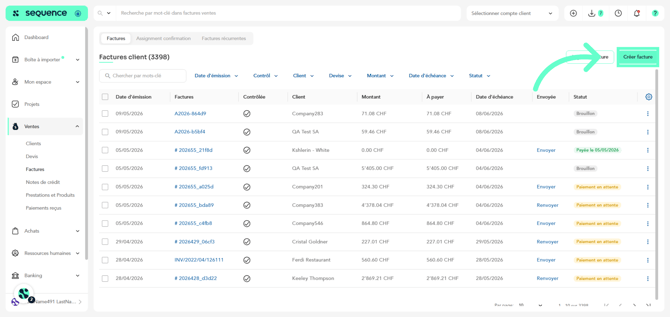
4. Enter the client and any other information you consider relevant. The payment method selector will appear underlined with a green line. You will need to select the payment method and then the account.
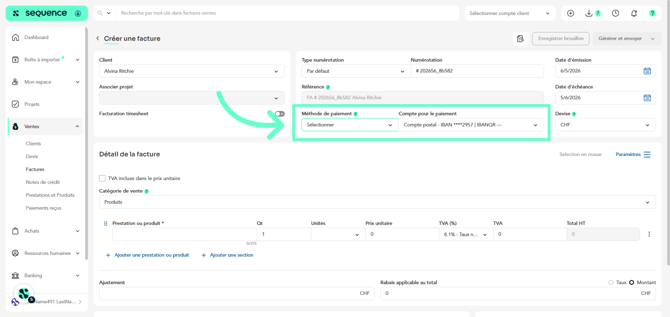
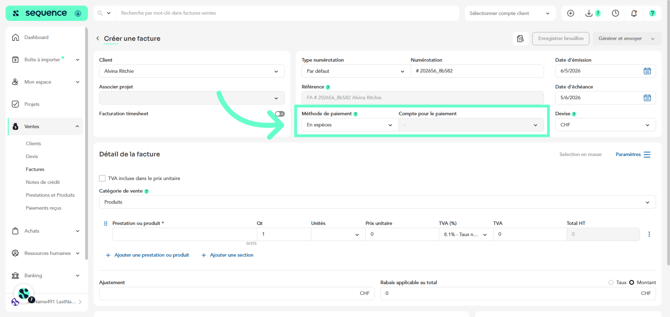
5. If you select Cash or Debit/Credit Card, the account selector will be locked as it will not be necessary to select one.
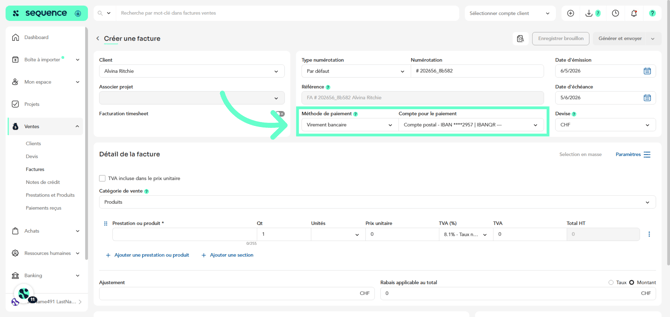
6. If you select Bank Transfer or Transfer with QR IBAN, it will be necessary to select a bank account.
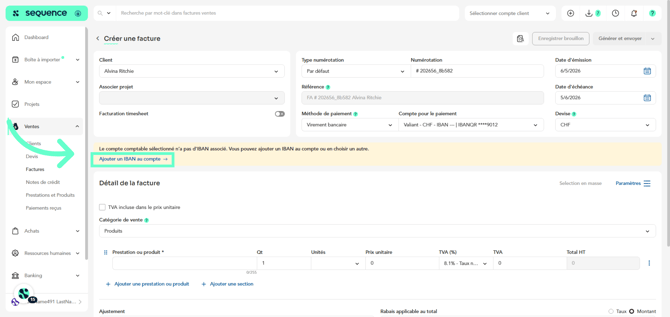
7. If you select an account that has neither an IBAN nor a QR IBAN, a yellow notification will appear asking you to enter the IBAN or select a different account.
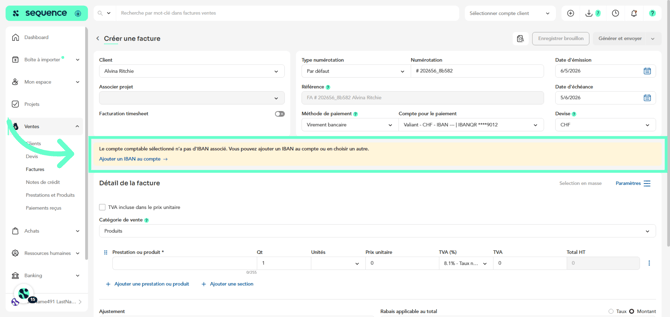
8. By clicking on the blue link, you will be able to enter the IBAN at that point.
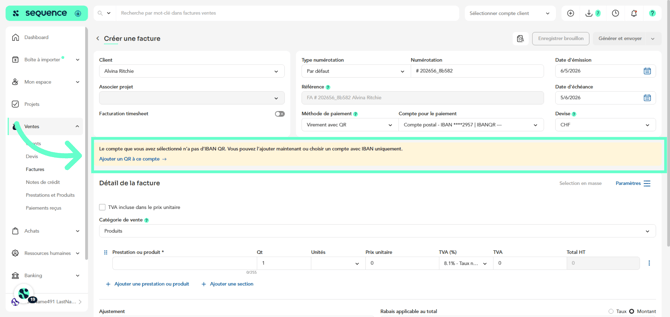
9. If you select QR Payment and choose an account that does not have a QR IBAN, a yellow notification will appear asking you to correct this or choose a different account.
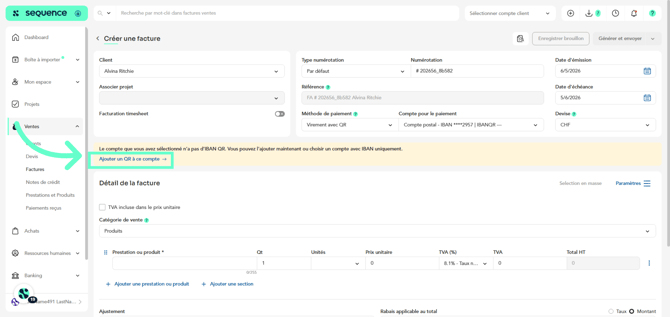
10. By clicking on the blue link, you will be able to enter the QR IBAN at that point.
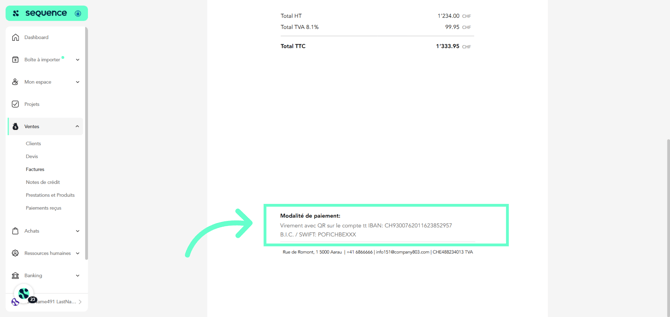
11. If you click on Preview invoice, you will see that the chosen payment method is indicated on it.
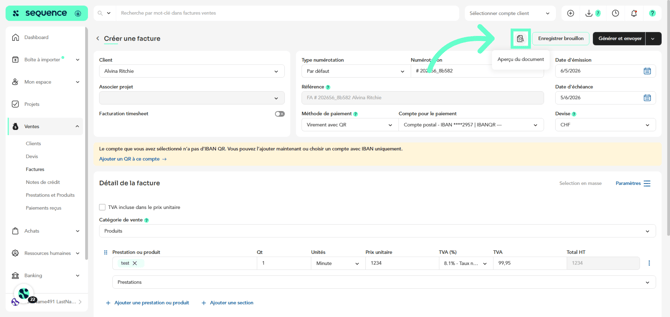
12. Here, you can see that the payment method is indicated.