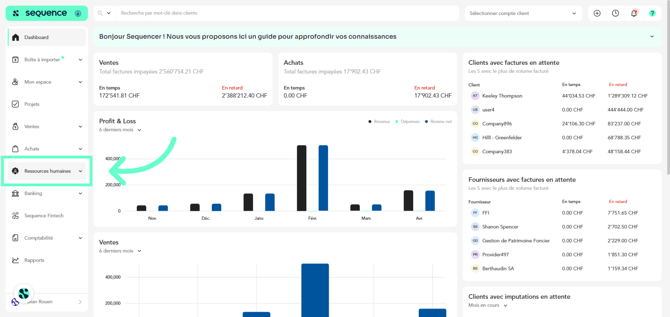
1. Click on Human Resources in the left-hand side menu.
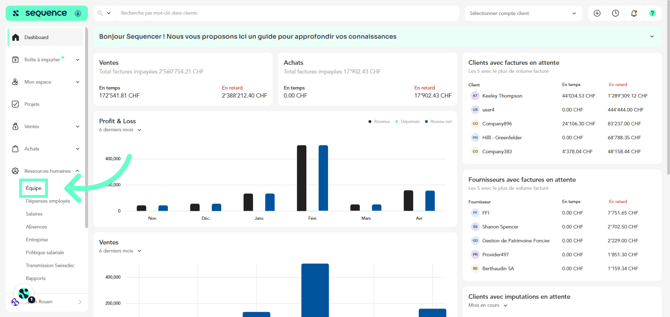
2. Among the displayed options, select Team.
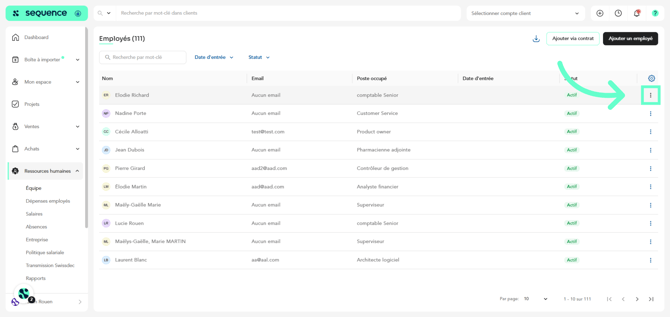
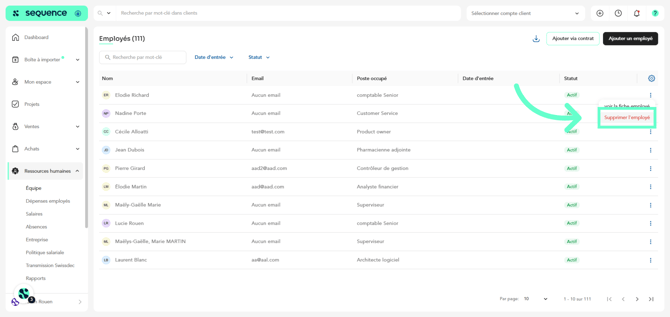
3. Click on the 3 dots of the employee you want to delete.
4. Click on Delete employee.
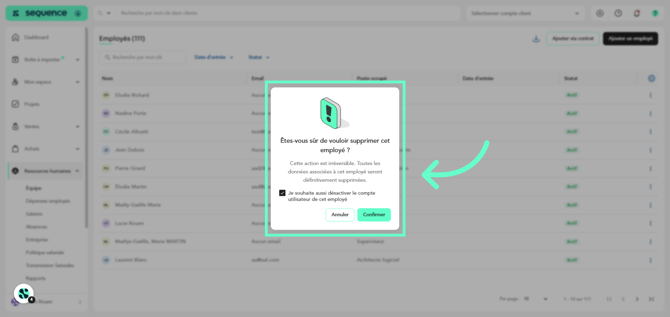
5. A modal will appear asking you to confirm that you want to delete this employee.
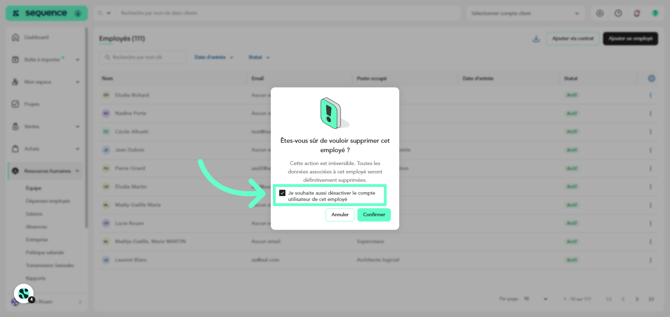
6. By default, the option to delete the user associated with this employee will be checked. If you do not want to delete it, uncheck this option.
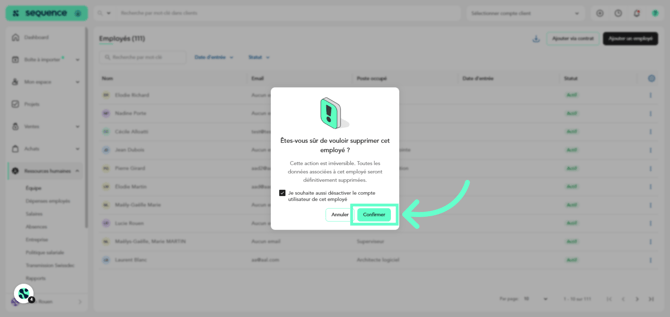
7. Click on Confirm to complete the process.
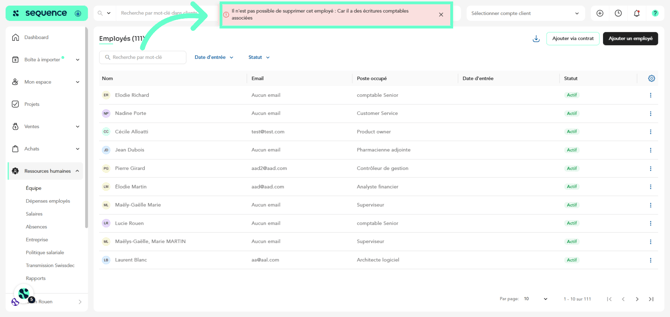
8. If the employee cannot be deleted because there are associated accounting entries, a notification will inform you.
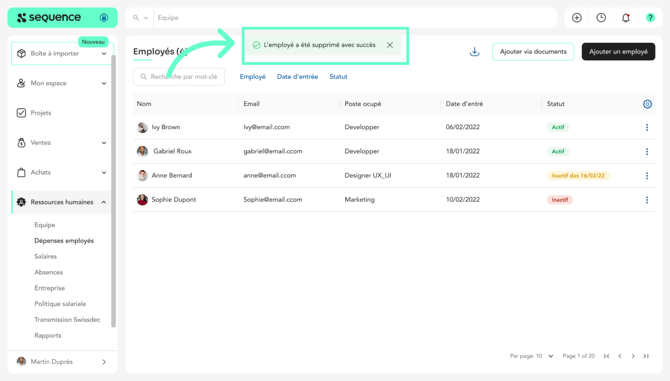
9. If the deletion is successful, a green notification will appear confirming that the employee has been successfully deleted.
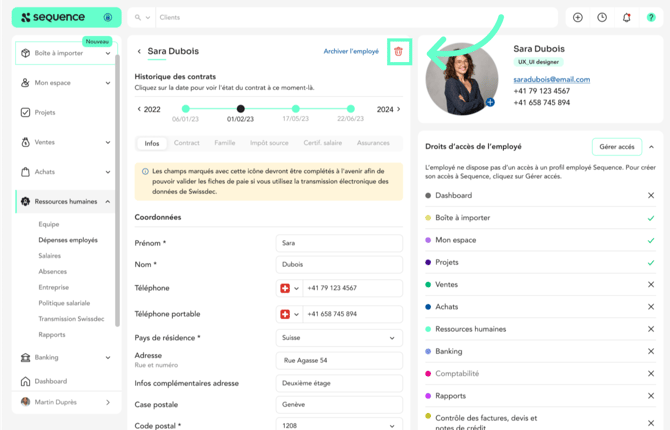
10. You can also delete an employee directly from their profile.