
This tutorial guides you through downloading a report of the hours logged by your employees for your different clients.
1. To download the report of hours logged by your employees, click on Reports in the left-hand side menu.
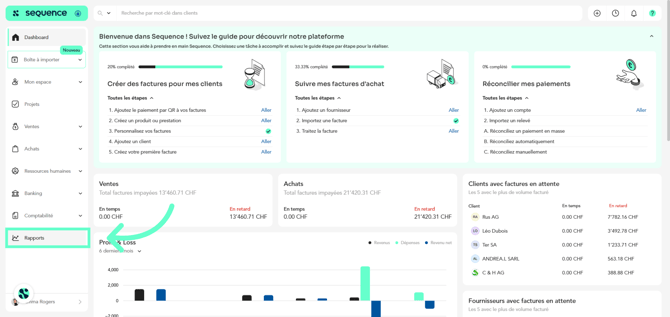
2. You have two methods to download your Timesheet report.
First option: Click on the three-dot icon.
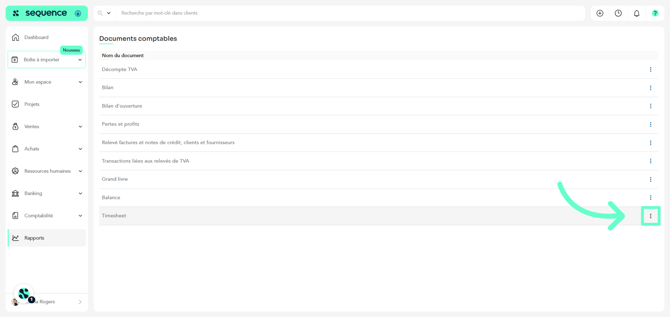
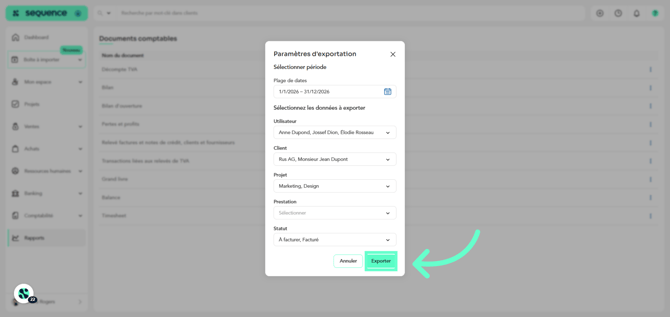
3. Then select the Export document option.
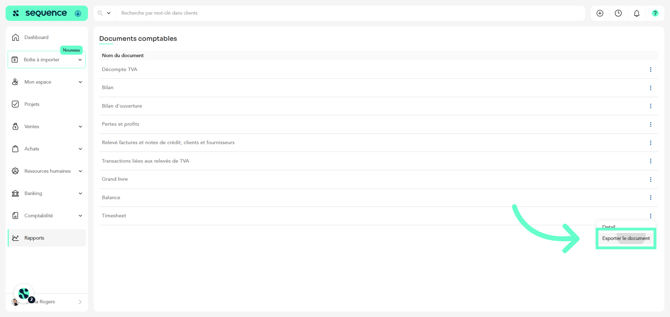
4. A modal window will open, where you will need to specify the dates, users, clients, projects, services, and statuses based on which you would like to export your Timesheet report.
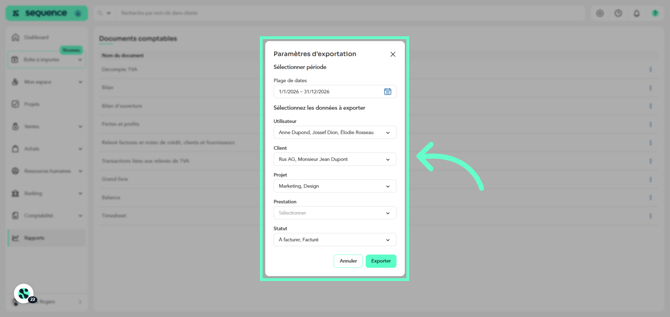
5. Once you have made your selection, click Export to generate the report.
 ç
ç
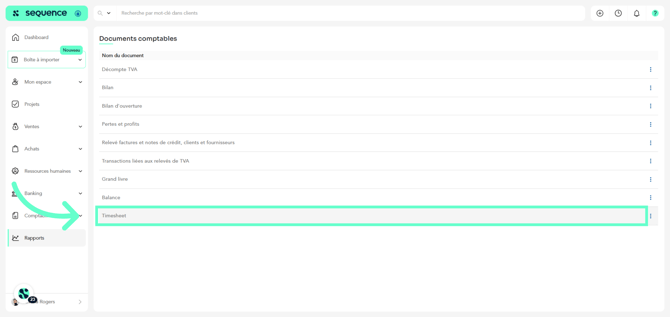
6. Second option: Click directly on the Timesheet line.
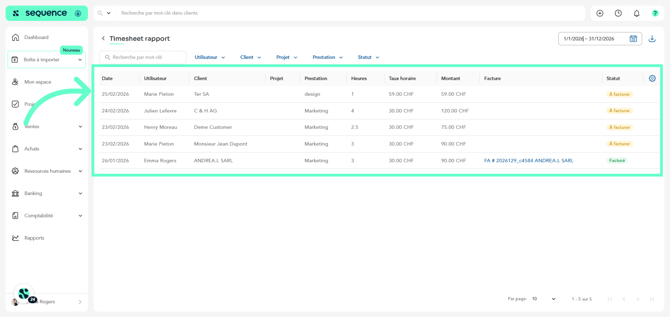
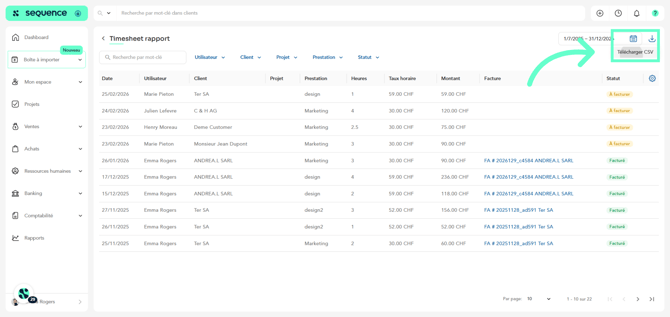
7. You will be taken to a screen displaying a table containing information about the time entries made by your employees for your different clients.
8. You can filter by date, as well as by user, client, project, service, and status.
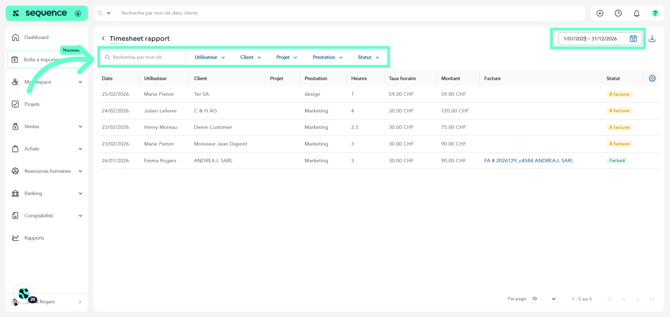
9. Once the desired data is displayed on the screen, click on the export icon to download your Timesheet report.
You have successfully downloaded a report of the hours logged by your employees for your clients in Sequence. You can now analyze this data or share the CSV file as needed.