This guide explains how to modify an employee's email address. Employees access their Sequence profile using this email address and a password. There are two ways to change the email: from the User Access section and from the employee’s profile.
From the user access section
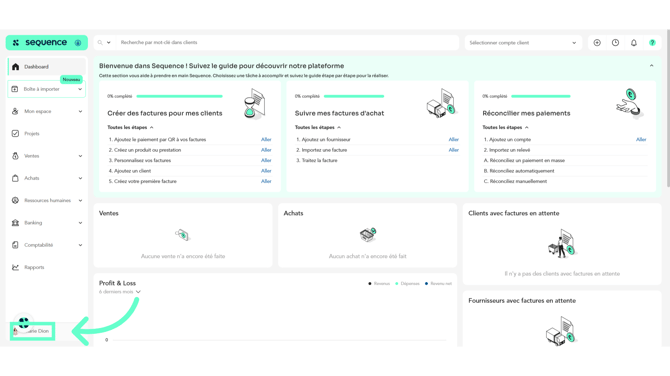
1. To change the email address from the User Access section, click at the bottom of the left-hand side menu.
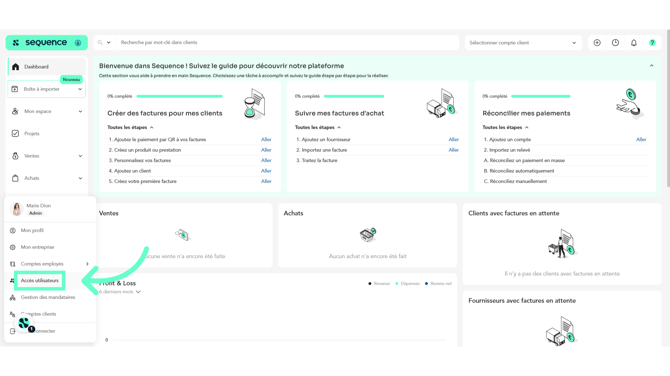
2. From the dropdown options, click User Access.
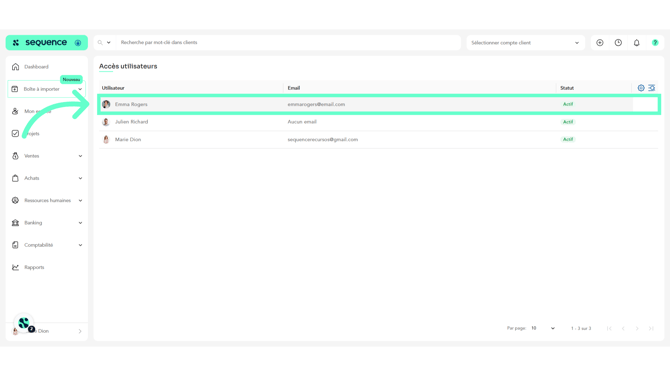
3. Click on the employee whose email address you want to change.
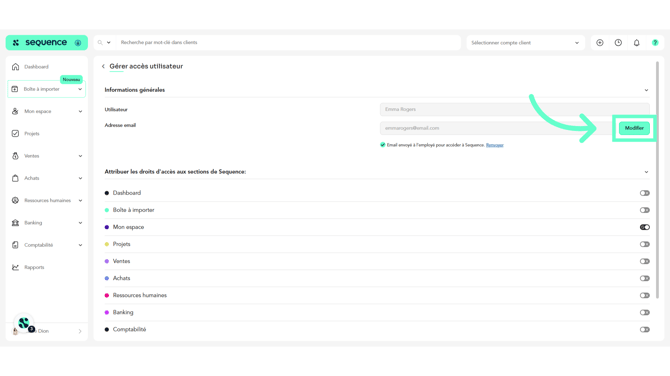
4. Click the Edit button.
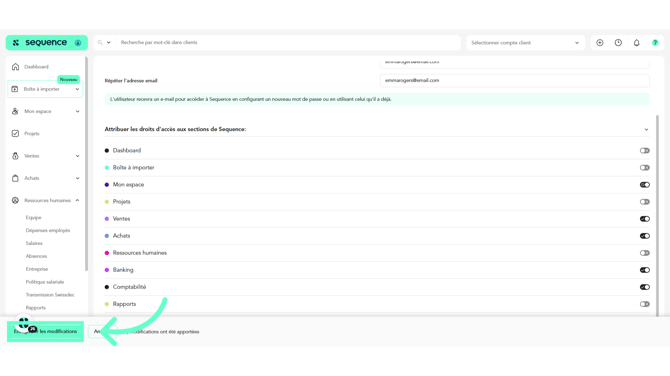
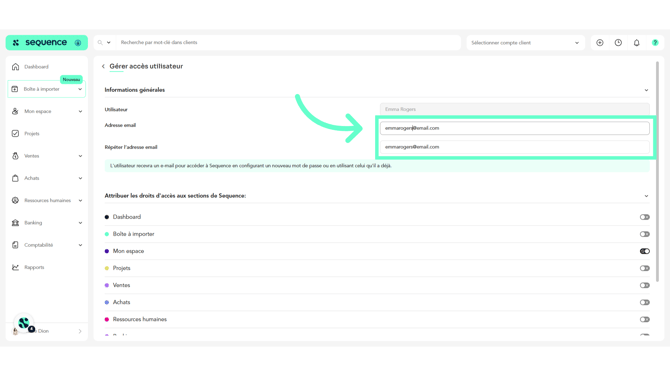
5. Enter the new email address and repeat it to avoid input errors.
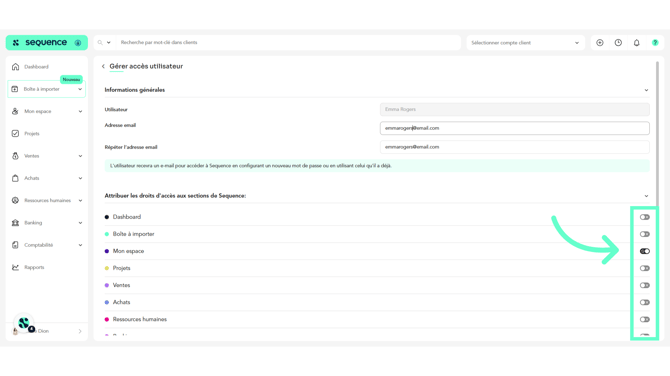
6. If desired, modify the employee’s access rights to Sequence by enabling or disabling the toggles as appropriate.
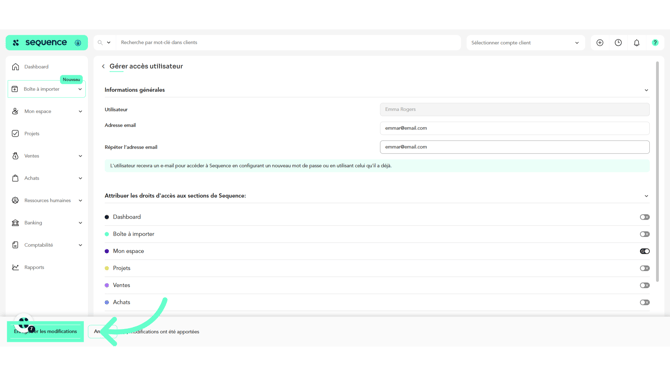
7. To finish, click Save changes.
From the employee profile
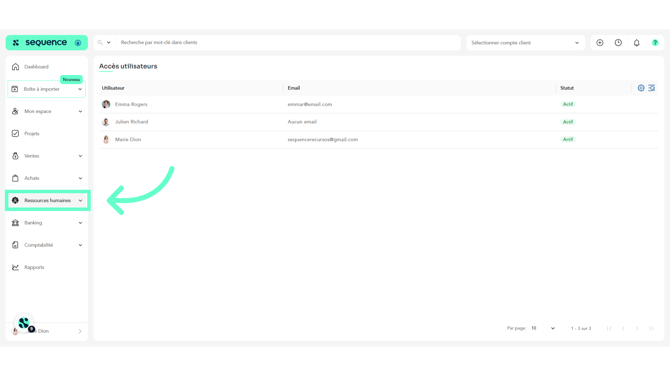
1. To change the employee’s email address from their profile, click Human Resources in the left-hand side menu.
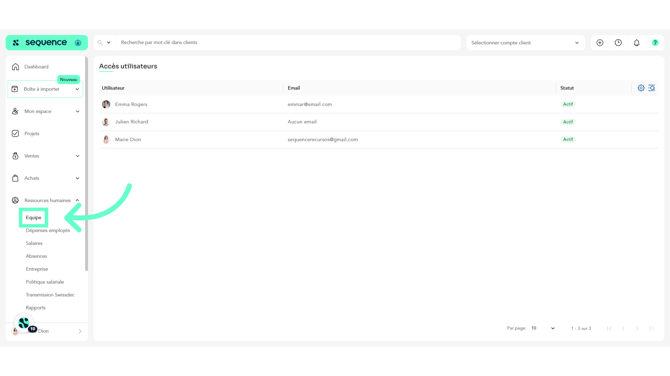
2. From the displayed options, select Team.
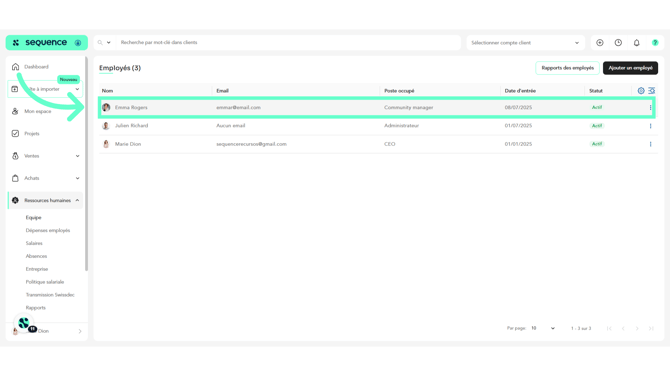
3. Click on the employee whose email address you want to change.
4. Click the Manage access button in the employee’s Access Rights module.
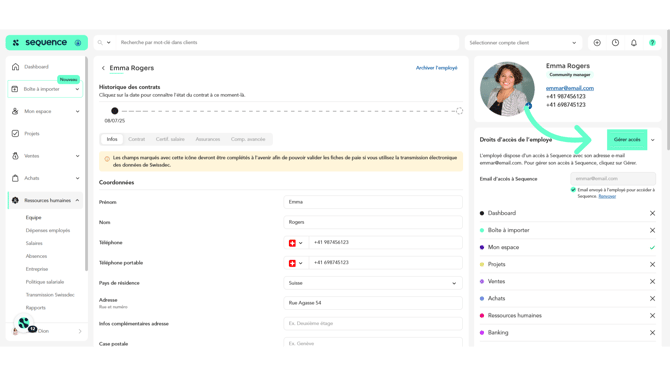
5. Click the Edit button that appears next to the email address.
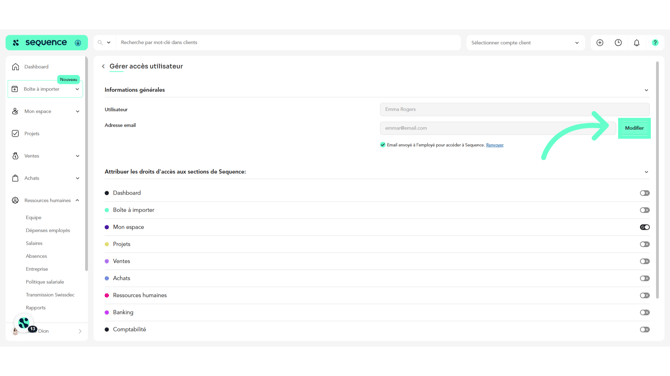
6. Enter the new email address and repeat it to avoid input errors.
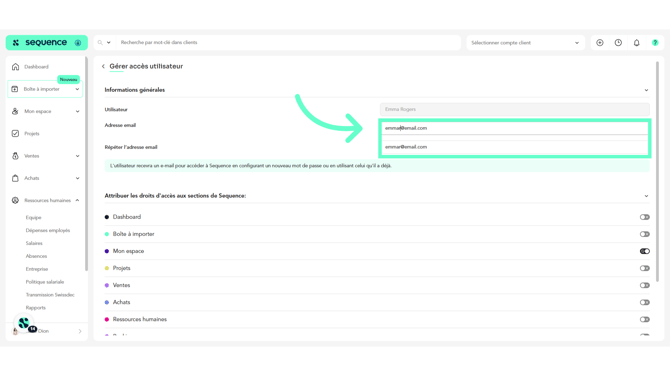
7. If desired, make changes to the user’s access rights to Sequence by enabling or disabling the toggles.
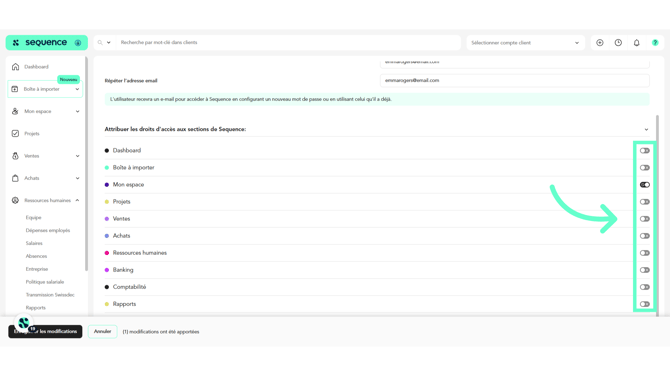
8. To finish, click Save changes.